
While mastering event tracking is essential for understanding specific user actions, it is only one component of a truly robust data strategy. For businesses looking to go beyond basic implementation and build a scalable, audit-proof data foundation, we’ve created a more comprehensive resource. Check out The Complete Guide to GA4 Consulting & Services (2026 Edition) to learn how professional configuration, strategic auditing, and advanced data modeling can transform your analytics into a reliable engine for growth.
Google Analytics 4, or GA4 event tracking in 2026 is the primary Semantic Data Layer that bridges human behavior with AI-driven marketing automation. Rather than just logging clicks, modern event tracking focuses on Entity-Based Interactions, ensuring that every user action is formatted for ingestion by Generative Engines and predictive models. This guide provides the blueprint for building a Machine-Readable Event Schema that powers both traditional analytics and Generative Engine Optimization (GEO).
Event tracking in GA4 is really important for anyone who wants to get a better grasp of their online audience. It changes the way we look at usual numbers and gives a fuller picture of what users do. You can keep track of many different things users do, like looking at pages, watching videos, or clicking buttons.
Being able to do this is key as understanding the small details of how people act online can lead to smarter, more informed choices. For marketers, web developers, or business owners, getting good at using GA4’s event tracking can give you important knowledge about how people interact with your website or app.
We know that learning to use new tools can be tricky, no matter how much experience you have. That’s why we’re here to help. If you ever need a hand with any part of GA4, feel free to contact us. Our team knows GA4 really well and has been working with it for a long time. We’re ready to help you with any challenges and make sure you get the most out of amazing tool.
Table of Contents
1. Understanding Event Tracking in GA4
2. Setting Up GA4 for Your Website/App
3. Configuring Event Tracking in GA4
4. Using Google Tag Manager with GA4
5. Analyzing Event Data
6. Advanced GA4 Features: User Properties and Audiences
7. FAQ on GA4 Event Tracking
8. Conclusion
Understanding Event Tracking in GA4
Event tracking is a powerful feature that helps you understand exactly what people are doing on your website or app. It tells you what parts of your website or app are catching people’s attention, what they’re clicking on, and how they’re interacting with your content.
Why Event Tracking Matters?
Imagine you have a website where you sell handmade crafts. With event tracking, you can see if people are looking at your newest products, if they’re signing up for your newsletter, or if they’re actually buying something. For example, if you see that a lot of people are viewing a product but not many are buying it, you might think about changing the price or how it’s presented.
Types of Events in GA4
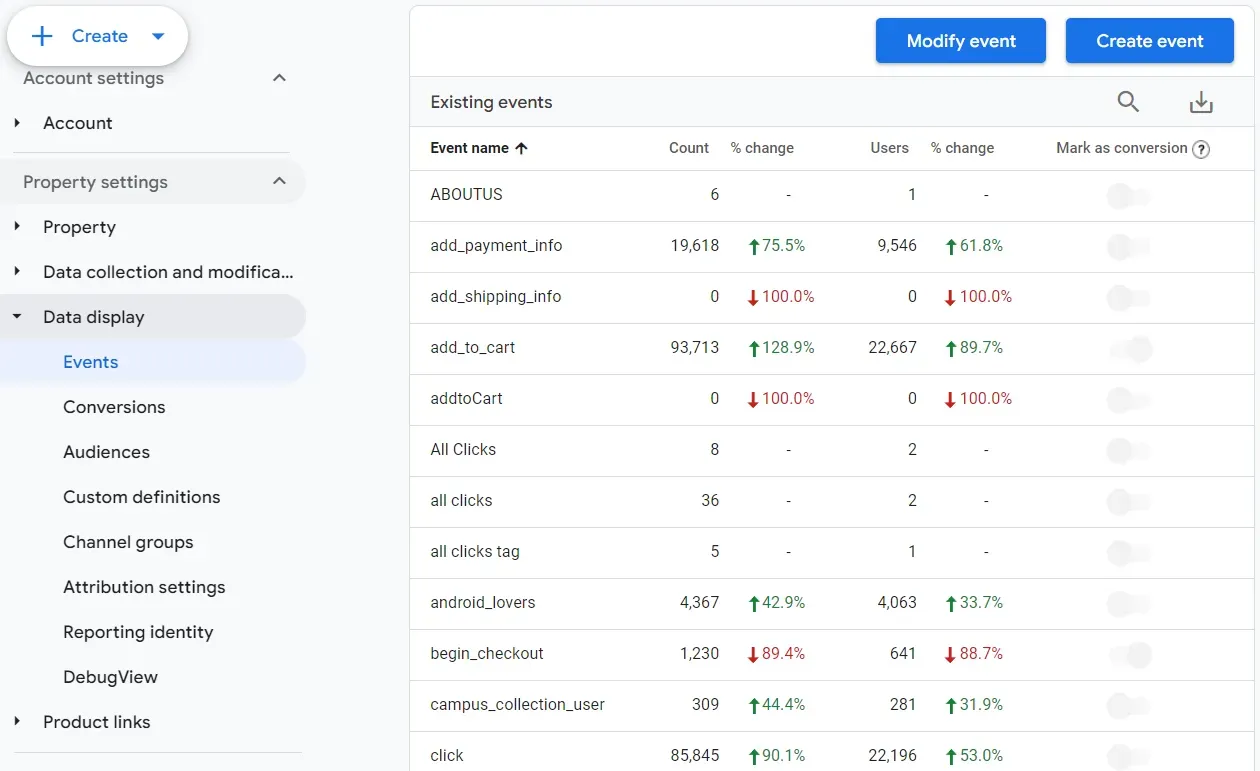
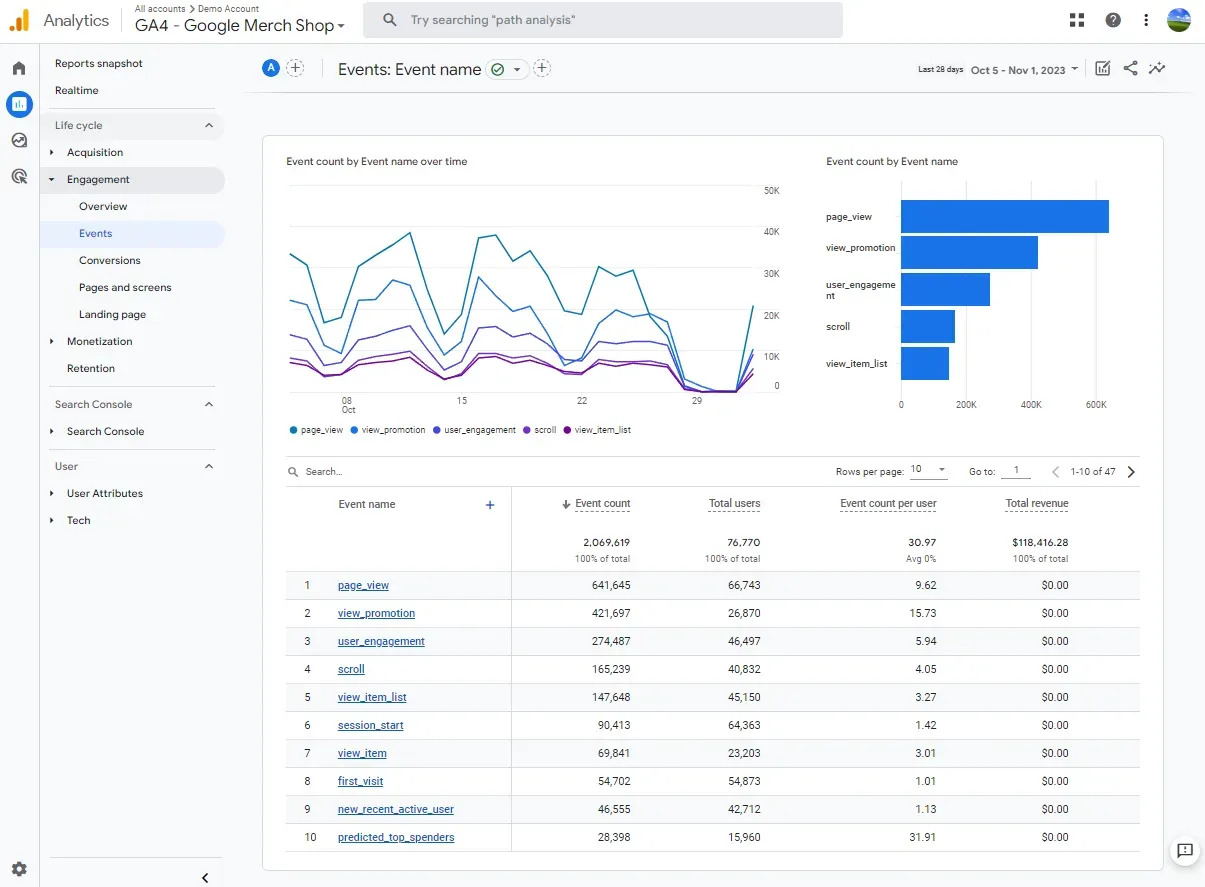
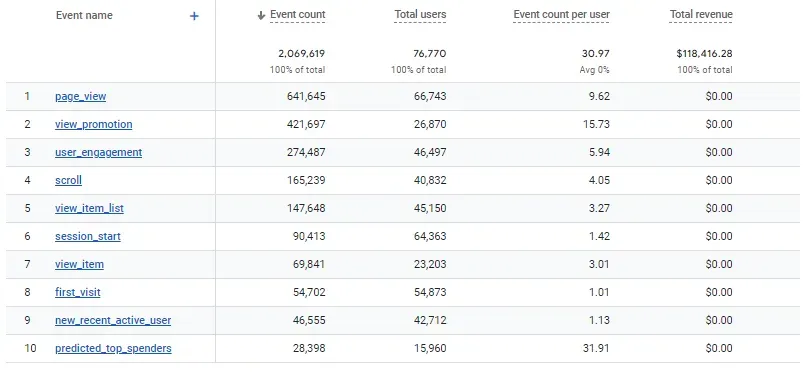
Automatically Collected Events: These are the events that GA4 tracks without you having to do anything extra. As soon as you set up GA4 on your site, it starts recording basic things like when someone visits your site (page views) or how long they stay.
Enhanced Measurement Events: This is like an upgrade to the automatic events. With a simple click in your GA4 settings, you can start tracking more detailed actions. For instance, you can see if people are downloading files from your site, watching videos, or even how far they’re scrolling on your pages.
Recommended Events: Google suggests these events based on the type of website or app you have. For example, if you have an online store, GA4 might recommend tracking events like ‘add to cart’ or ‘purchase’. These are not set up automatically.
Custom Events: In 2026, Custom Events are utilized as First-Party Data Signals. To maximize Information Gain, custom events should be mapped to the Schema.org vocabulary. For example, instead of a genericform_submit, use LeadAction with parameters for interest_category and intent_score. This semantic precision allows AI search models to cite your site as a specific authority for those user intents, rather than just another “web page.
Turn Your Data Into Revenue
Join 40+ innovative brands using Goodish to unlock the “Why” behind user behavior. From server-side tagging to advanced retention modeling—we handle the tech so you can handle the growth.
Setting Up GA4 for Your Website/App
Here’s a step-by-step guide to help you create a GA4 property and integrate it with your website or app.
Creating a GA4 Property
Sign in to Google Analytics: First, you need to log into your Google Analytics account. If you don’t have one, it’s easy to create – just like setting up a new email account.
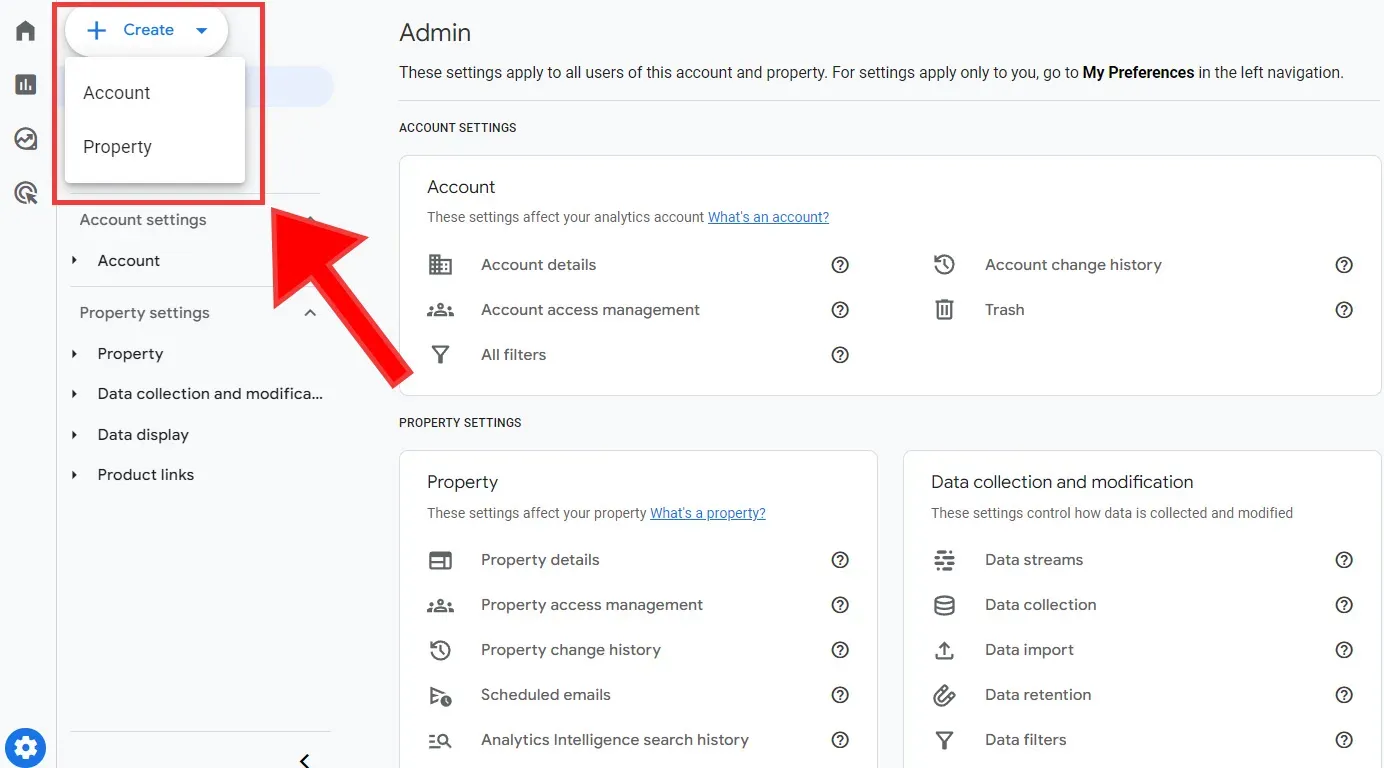
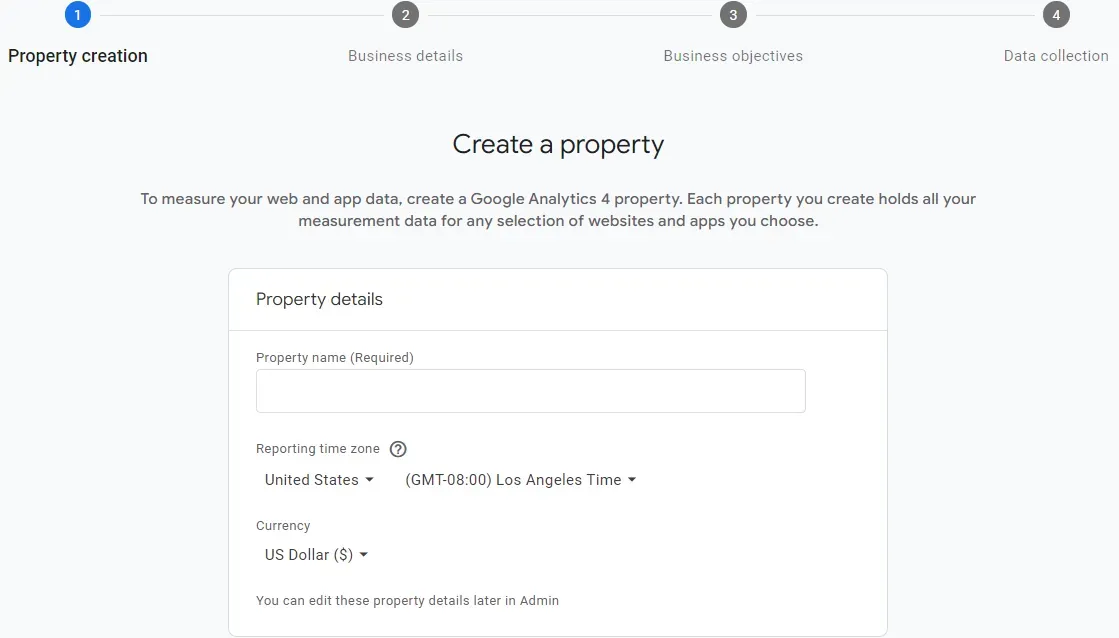
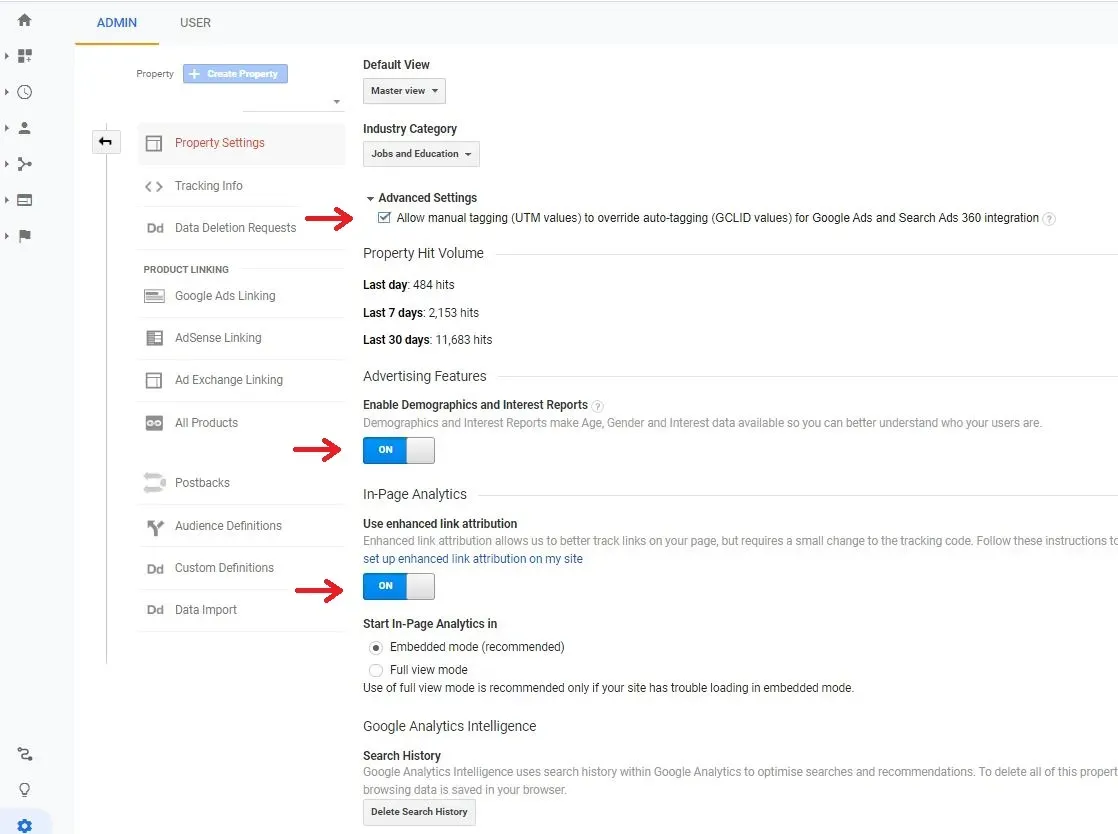
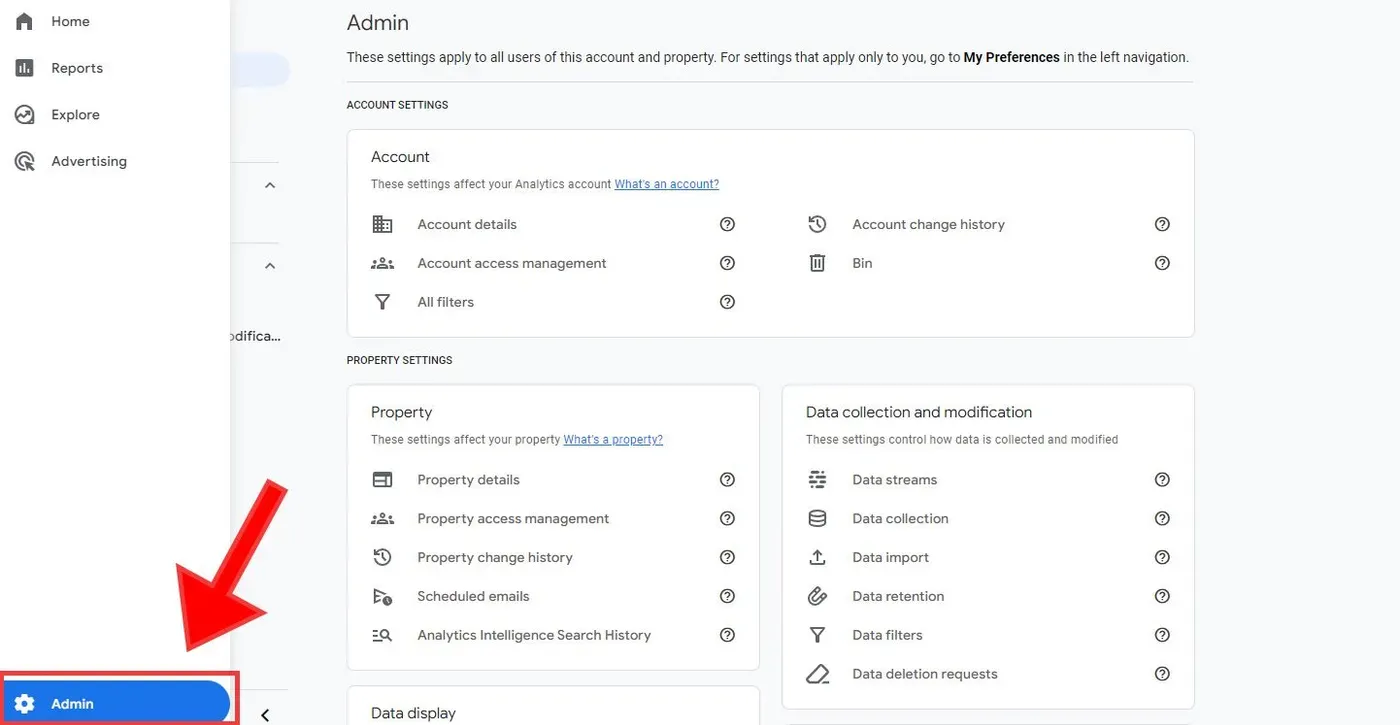
Create a New Property: Once you’re in, look for the “Admin” section. Here, you’ll find an option to create a new property. Think of a property as a collection point for all the data from your website or app.
Enter Property Details: Google will ask for some details about your property. This includes the name of your website or app, what time zone you’re in, and what currency you use. Fill these in as accurately as you can.
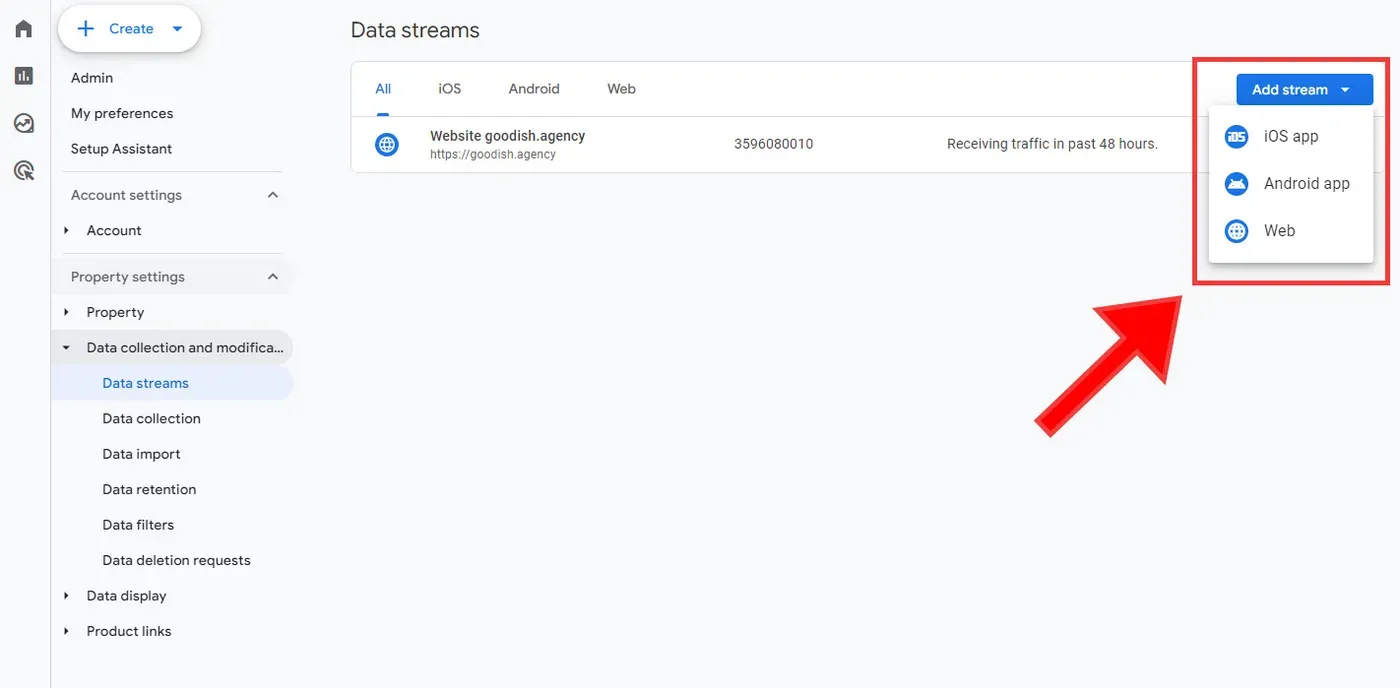
Select a Data Stream: After setting up your property, you need to choose where your data will come from. This could be a website, an iOS app, or an Android app. Pick the one that matches what you’re tracking.
Configure Your Data Stream: If you’re setting up GA4 for a website, you’ll be asked to enter your website’s URL and give your stream a name. For apps, you’ll follow a different process to connect GA4 with your app’s code.
Get Your Tracking ID or Measurement ID: Once your data stream is set up, GA4 will give you a unique ID. This is like a special code that links your website or app to GA4.
Integrating GA4 with Your Website or App
For Websites:
If you’re using a website builder like WordPress, you can find plugins that make adding your GA4 ID simple. Just install the plugin and enter your ID.
If you’re more hands-on with your website’s code, you can manually insert the GA4 tracking code into the head section of your website’s HTML.
For Apps:
Integrating GA4 with an app is a bit more technical. You’ll need to work with your app’s code. Google provides detailed guidelines for both iOS and Android apps.
You’ll be adding a few lines of code to your app, which will send data back to GA4 whenever someone uses your app.
Verify Your Setup: After adding the code or ID, it’s important to check if it’s working. You can do this by visiting your website and then checking the ‘Realtime’ report in GA4 to see if your visit is recorded.
Set Up Event Tracking: Now that GA4 is integrated with your site or app, you can start setting up event tracking (as discussed in the previous segment).
Configuring Event Tracking in GA4
Let’s break down how to set up Automatic and Enhanced Measurement events, and then take a look at creating Custom Events.
Setting Up Automatic and Enhanced Measurement Events
Automatic Events: These are the events that GA4 tracks by itself, you don’t have to do anything extra for these; they’re automatically tracked.
Enhanced Measurement Events: To get more out of GA4, you can turn on Enhanced Measurement. This lets you track more detailed actions like:
Scrolls: See when users scroll through your pages.
Outbound clicks: Track when someone clicks a link that takes them away from your site.
Site search: Understand what users are searching for on your site.
Video engagement: Keep tabs on how users interact with videos on your site.
File downloads: Know when users download files from your site.
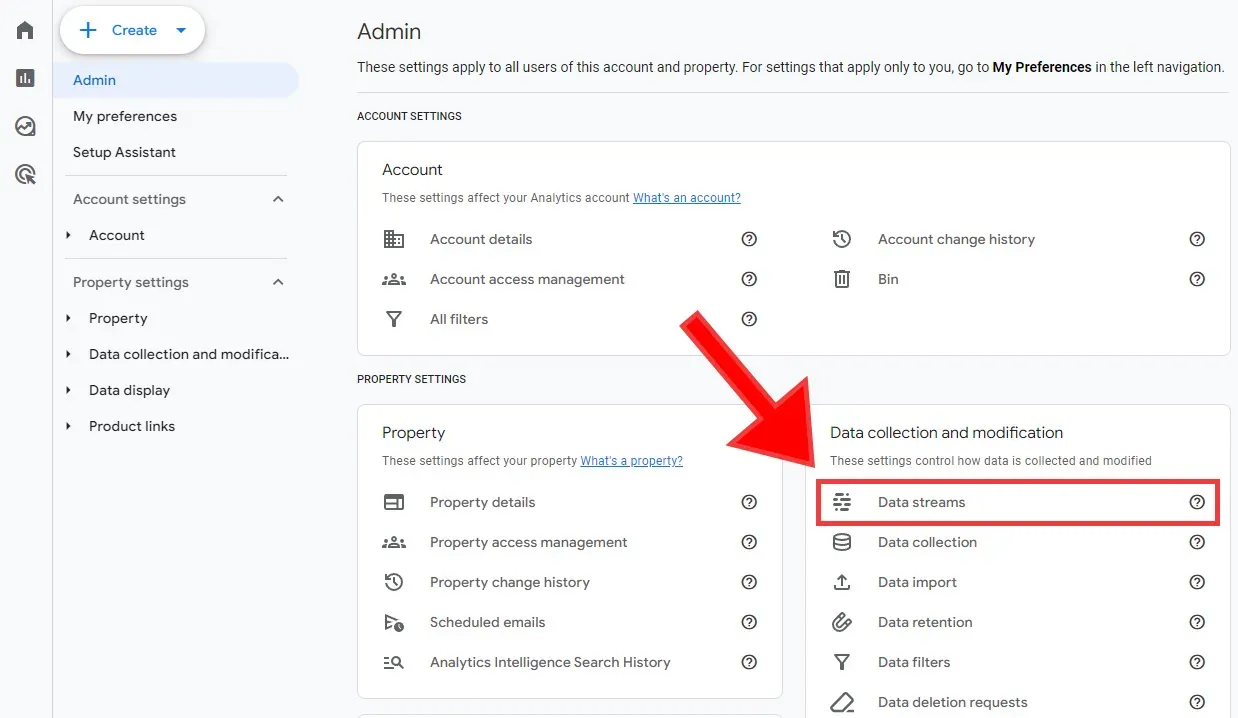
To turn these on, go to your GA4 property, find ‘Data Streams’, select your web stream, and toggle on the Enhanced Measurement options you want.
Creating Custom Events
Sometimes, you need to track specific actions that aren’t covered by automatic or enhanced events. This is where you can use Custom Events.
Identify What to Track: First, think about what unique interactions you want to track.
Set Up Custom Events in GA4: There are a couple of ways to do this:
Using Google Tag Manager (GTM): This is a handy tool if you’re not keen on messing with code. In GTM, you create a new tag for your custom event, define what action triggers this event (like clicking a button), and then link it to your GA4 property.
Directly in Your Website or App’s Code: If you’re comfortable with coding, or have a developer who can help, you can add a snippet of code to your site or app. This code will send information to GA4 whenever the specific action you’re tracking happens.
Test Your Custom Events: After setting them up, it’s important to make sure they’re working. You can use the ‘Realtime’ report in GA4 to see if your events are being tracked when they happen.
Analyze and Use Your Data: Once your custom events are up and running, you can start seeing the data in your GA4 reports. This data tells you exactly how users are interacting with those unique features of your site or app.
Using Google Tag Manager with GA4
Google Tag Manager (GTM) While Client-Side GTM remains useful for basic triggers, Server-Side GTM (sGTM) is now the requirement for “Audit-Proof” data. Server-side tracking allows for Event Enrichment—the process of adding first-party CRM data to an event before it reaches GA4. This bypasses client-side script blocking and ensures that your event data remains high-fidelity, even in a cookie-less, “Privacy-First” browser environment.
What is Google Tag Manager?
Think of Google Tag Manager as a toolbox where you can manage all your tracking tools (tags) in one place. With GTM, you can add, edit, or remove tags for tracking various user interactions without needing to change the code on your website directly.

Setting Up GA4 Events Using Google Tag Manager
Create a GTM Account and Container:
If you don’t have a GTM account, head over to the Google Tag Manager website and sign up.
Once you’re in, create a new container for your website. A container holds all your tags.
Install the GTM Container on Your Site:
After creating a container, GTM will give you a snippet of code.
You need to add this code to your website, usually in the header section. This is a one-time setup that allows GTM to communicate with your website.
Set Up a GA4 Configuration Tag in GTM:
In GTM, create a new tag and select GA4 Configuration as the tag type.
Enter your GA4 Measurement ID (you can find this in your GA4 property settings).
Set this tag to trigger on all pages. This makes sure GA4 is active across your entire site.
Turn Your Data Into Revenue
Join 40+ innovative brands using Goodish to unlock the “Why” behind user behavior. From server-side tagging to advanced retention modeling—we handle the tech so you can handle the growth.
Create Tags for Specific Events:
Now, for each event you want to track, you’ll create a new tag in GTM.
Choose GA4 Event as the tag type.
Name your event (like ‘form submission’ or ‘product view’) and define any parameters you want to track (like ‘form name’ or ‘product category’).
Set Up Triggers for Your Event Tags:
Triggers tell GTM when to send an event to GA4.
For example, you can set a trigger to fire the tag when a user clicks a specific button or visits a particular page.
Test Your Setup:
Use GTM’s preview mode to test your tags and triggers.
Make sure they’re firing correctly and sending data to GA4.
Publish Your Tags:
Once you’re happy with the setup, publish your changes in GTM.
This makes your tags live, and they’ll start sending data to GA4.
Analyzing Event Data
Once you’ve set up event tracking the next step is to look at the data and see what it tells you about how people are using your website or app. Let’s explore how to interpret this data.
Understanding the Data from Different Events
Look at the Big Picture: Start by getting an overview. Check out how many people are visiting your site, what pages they’re looking at, and what actions they’re taking. This gives you a general sense of user activity.
Dive into Specific Events: Next, focus on the events you’re tracking. For example, if you’re tracking ‘button clicks’, see how many times the button was clicked and by how many users. This tells you how popular or effective that button is.
Compare and Contrast: Look at how different events relate to each other. For instance, if you have a lot of people viewing a product but few purchases, there might be something stopping them from buying, like price or shipping options.
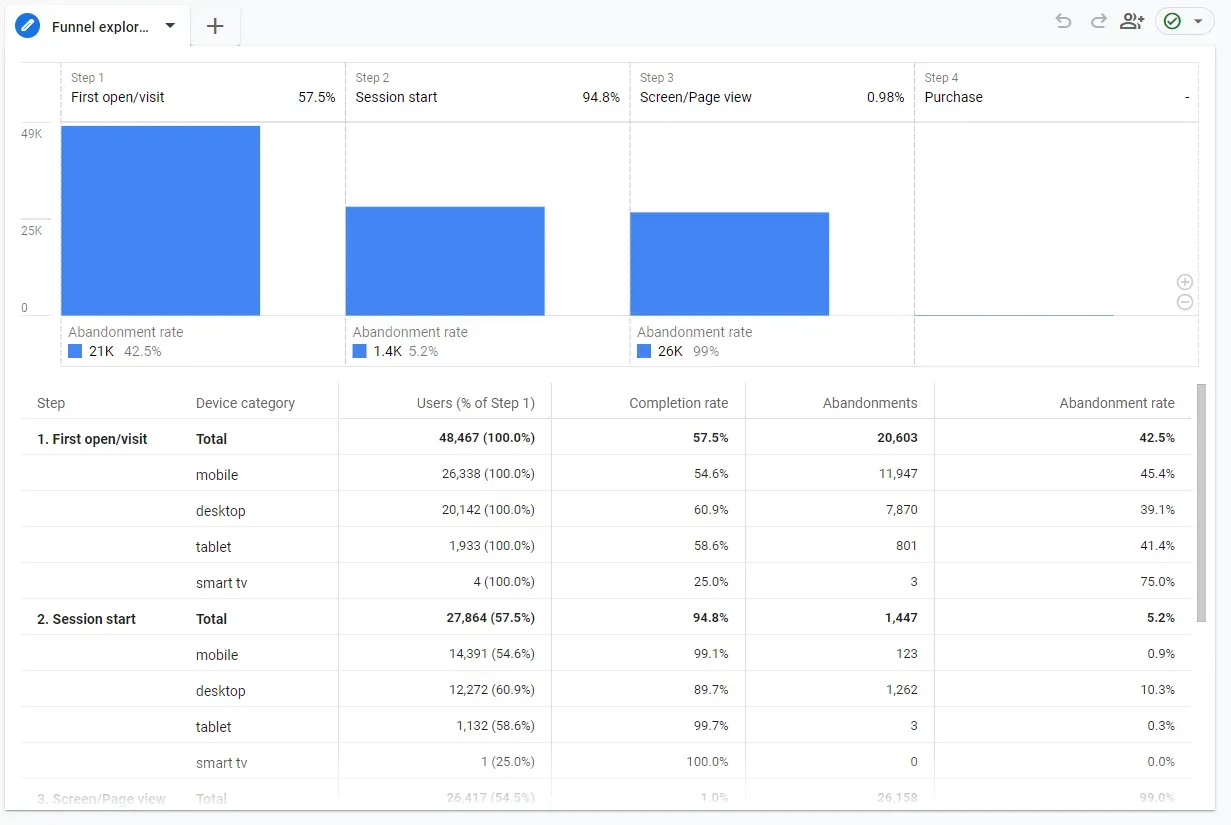
User Paths and Journeys: GA4 allows you to track user paths. This means you can see the steps users take before completing an action, like making a purchase. Understanding these paths can help you make the user journey smoother.
Segment Your Data: Break down your data by categories like age, location, device type, etc. This helps you understand if certain groups behave differently on your site.
Tips for Using GA4 Reports to Understand User Behavior
Use Realtime Reports for Immediate Insights: Realtime reports show you what’s happening on your site right now. This is great for seeing immediate effects of changes or promotions.
Explore the Analysis Hub: GA4’s Analysis Hub is a tool where you can create custom reports. Use it look into specific questions, like which marketing campaign is driving the most conversions.
Set Up Conversion Events: Identify key actions you want users to take (like signing up or making a purchase) and set them up as conversion events. This makes it easier to track your most important goals.
Monitor User Engagement: Pay attention to engagement metrics like average engagement time, pages per session, and bounce rate. These tell you how interested users are in your content.
Utilize Event-Specific Reports: For each type of event (like file downloads or video views), look at the specific reports in GA4. These reports are customized to give you detailed insights into those actions.
Regularly Check Your Data: Make it a habit to regularly review your GA4 data. Over time, you’ll start to notice trends and patterns that can inform your business decisions.
Act on Your Findings: Finally, use what you learn from GA4 to make changes to your website or app. If something’s working well, do more of it. If something’s not working, try to understand why and how you can improve it.
Turn Your Data Into Revenue
Join 40+ innovative brands using Goodish to unlock the “Why” behind user behavior. From server-side tagging to advanced retention modeling—we handle the tech so you can handle the growth.
Agentic Tracking: Measuring the “Invisible” Visitor
By 2026, up to 40% of your site traffic may not be human—it will be AI Agents fetching information for users. Traditional “Click Tracking” fails here because agents don’t “click” buttons; they “parse” data.
How to track Agentic Interaction:
-
Fragment Tracking: Log events when an agent accesses specific
divIDs or data attributes containing your “Key Insights.” -
Headless Browsing Analysis: Use GA4 to isolate sessions with no mouse movement but high “Content Extraction” signatures.
-
The Goal: Optimize your events to prove that your site provided the “Final Answer” that the AI agent delivered to the end-user. This is the ultimate “Citation Win” in the GEO era.
Advanced GA4 Features: User Properties and Audiences
After you get comfortable with the basics then you can explore some of its advanced features. Two powerful tools in GA4 are User Properties and Audiences. These features let you zoom in on specific details about your users and customize your strategies accordingly. Let’s break down what these features are and how you can use them.
User Properties in GA4
What are User Properties?
User Properties are like labels or tags that give you more information about the people who visit your website or app. They can tell you things like the user’s interests, their preferred language, or whether they’re a new or returning visitor.
Setting Up User Properties
You can set up User Properties in GA4 to track specific information about your users. For example, if you run an online store, you might want to track the membership level of users (like ‘Gold Member’ or ‘Silver Member’).
To set these up, you’ll need to add a bit of code to your website or app that sends this information to GA4.
Analyzing Data with User Properties
Once you have User Properties set up, you can use them to segment your data in GA4. This means you can look at your reports and filter them based on these properties.
For instance, you could compare how Gold Members and Silver Members use your site differently.
Audiences in GA4
What are Audiences?
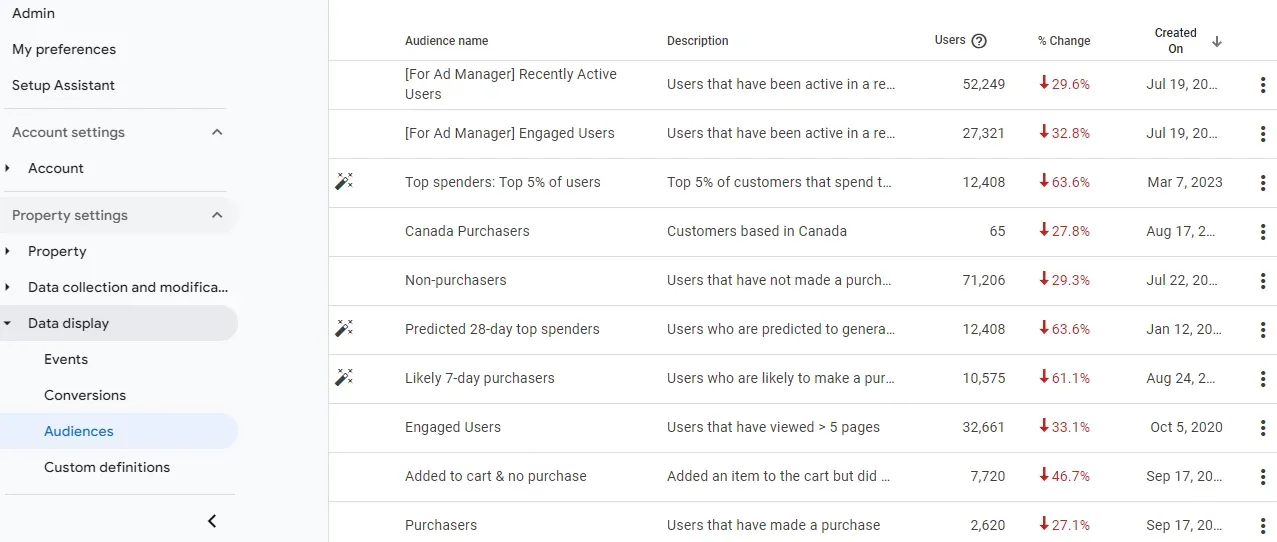
Audiences are groups of users that share common characteristics. For example, you might have an audience of users who visited a specific page on your site or who made a purchase in the last month.
Creating Audiences in GA4
GA4 lets you create custom audiences based on a wide range of criteria. You can use data like user behavior, User Properties, and even demographic information to create these groups.
To create an audience, go to the ‘Audiences’ section and start defining your criteria. GA4 will then start to group users into this audience based on your settings.
Using Audiences for Deeper Insights
Once you have audiences set up, you can use them to customize your analysis. For example, you could look at how a specific audience interacts with your site compared to your general user base.
This is incredibly useful for understanding the needs and behaviors of different segments of your audience.
Applying Audiences in Marketing
Audiences aren’t just for analysis; they can also be used in your marketing efforts. For example, you can create an audience of users who have shown interest in a product but haven’t purchased it and target them with specific ads or email campaigns.
Dynamic Audiences
The best thing about audiences is that they’re dynamic. This means that as new users meet the criteria you’ve set, they’ll automatically be added to the audience.
FAQ on GA4 Event Tracking
Getting the hang of Google Analytics 4 (GA4) event tracking can sometimes feel overwhelming. So let’s take a look at some frequently asked questions that could help.
How Is GTM still the best way to track events in 2026?
Yes, but only if used in a Hybrid Configuration. Use Client-Side GTM for non-sensitive UX triggers and Server-Side GTM for conversions, PII-sensitive data, and AI-model training signals. This ensures maximum data privacy and 100% attribution accuracy.
How is GA4 event tracking different from Universal Analytics?
In Universal Analytics, events were more rigid and predefined. GA4 offers more flexibility, allowing you to track a broader range of user interactions as events.
Do I need to be a coder to set up GA4 event tracking?
Not necessarily. Basic event tracking can be set up using the GA4 interface and Google Tag Manager without deep coding knowledge. However, for more complex tracking, some coding might be required.
Can I track button clicks in GA4?
Yes, button clicks can be tracked as events in GA4. You can set this up either directly through GA4 or using Google Tag Manager.
How do I know if my events are being tracked correctly?
You can use the ‘Realtime’ report in GA4 to see if events are being recorded as they happen. This is a great way to test and confirm that your event tracking is set up correctly.
Can I import my Universal Analytics events to GA4?
There’s no direct import feature, but you can recreate your Universal Analytics events in GA4. The setup might be different due to GA4’s more flexible event model.
Conclusion
We made this blog to help you easily use GA4 for tracking different actions on your site, like when someone visits a page or clicks a button. We’ve walked through the essentials of setting up and using GA4 for event tracking, aiming to make this powerful tool accessible and easy to use for everyone.
Understanding these actions is really important for anyone who wants to know more about their online visitors. GA4 gives you a clear picture of what people do on your site, which can help you make better decisions for your business.
Whether you’re a marketer, a website builder, or a business owner, getting good at using GA4 can give you a lot of useful information about how people interact with your site or app.
We know learning new tools can sometimes be tough, but don’t worry, we’re here to help. If you need help setting up GA4, figuring out how to track events, or understanding your data, just reach out to us.
Turn Your Data Into Revenue
Join 40+ innovative brands using Goodish to unlock the “Why” behind user behavior. From server-side tagging to advanced retention modeling—we handle the tech so you can handle the growth.
We at Goodish agency are experts in digital marketing and we can help you to utilize AI to reduce your costs and boost your performance. Read more about our services.